

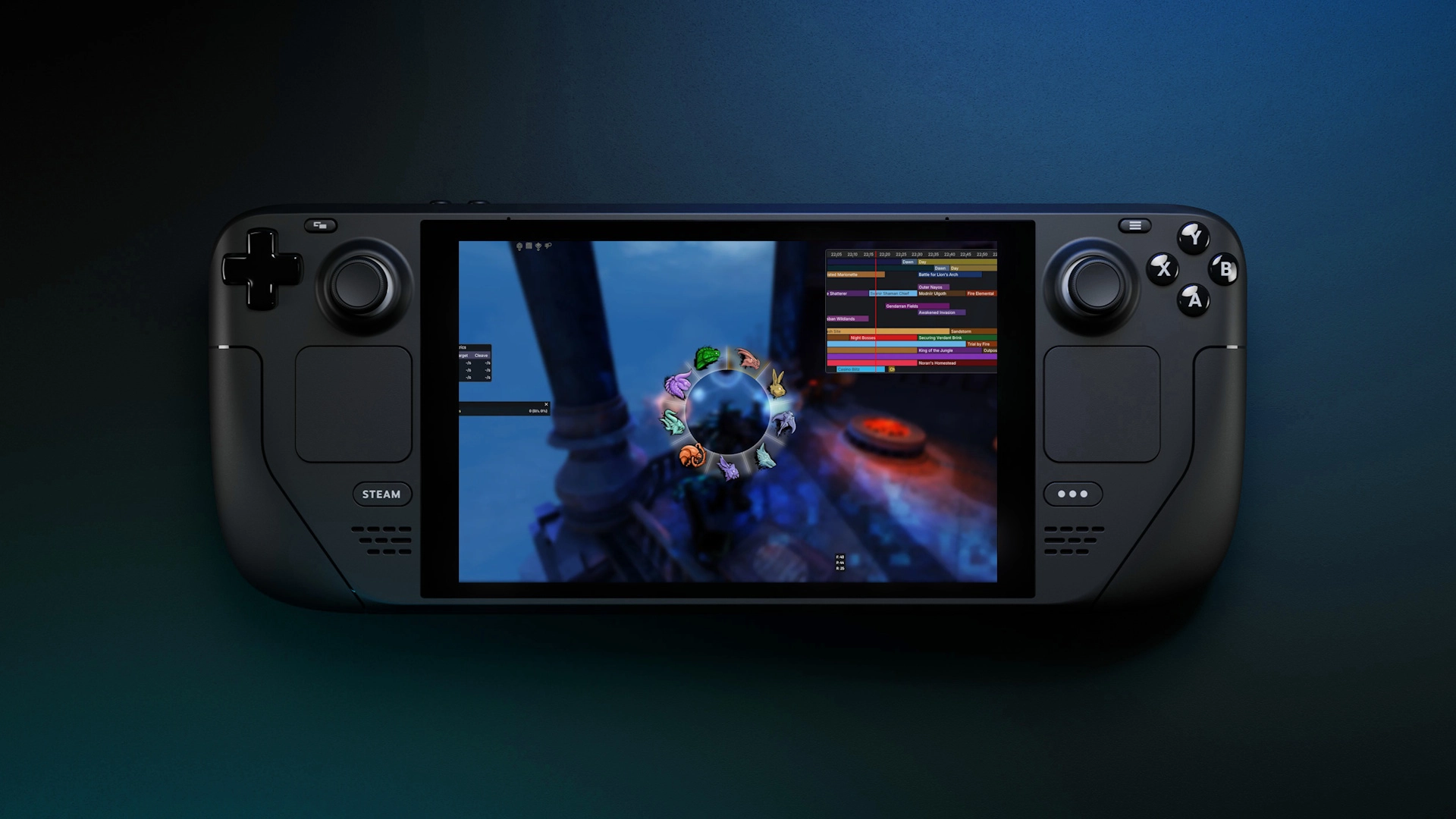
Guild Wars 2 runs well on Linux and the Steam Deck through Proton, and on Apple Silicon Macs through CrossOver. Most addons come along: ArcDPS, Nexus and its addons work much like on Windows. Separate overlay programs such as Blish HUD are a different story. This guide explains what works, how to set it up and where the limits are.
ArenaNet does not support Linux or macOS. Everything here is community knowledge and can change with any game, Proton or CrossOver update.
What works
| Addon type | Examples | Linux and Steam Deck | Mac (CrossOver) |
|---|---|---|---|
| In-game addons (loaded as a DLL) | Nexus and its addons, ArcDPS and its extensions | Work well | Work |
| Graphics injectors | ReShade | Work, with a DLL override | Depends on the graphics backend |
| External overlay programs | Blish HUD, GW2TacO | Limited, with workarounds | Not working |
The difference is how they draw. In-game addons draw inside the game's own frame, so they work wherever the game works. External overlays are separate transparent windows on top of the game, and Wine does not implement the Windows features they need for transparency and click-through.
How DLL addons load under Wine and Proton
Addons like Nexus and ArcDPS are files named d3d11.dll or dxgi.dll next to Gw2-64.exe. Windows loads a DLL from the game folder before its own system copy. Wine and Proton ship their own versions of these files (under Proton, DXVK translates DirectX 11 to Vulkan) and may prefer those instead.
A DLL override tells Wine to load the file from the game folder first, and fall back to its own:
WINEDLLOVERRIDES="d3d11=n,b" %command%n,b means native first, then builtin. Use dxgi=n,b instead, or both separated by a semicolon, if your addon uses the name dxgi.dll. Recent Proton versions often load a d3d11.dll from the game folder without an override, but setting it does no harm and rules out the most common problem.
Linux with Steam and Proton
The Steam version is the easiest route. Guild Wars 2 is rated Platinum on ProtonDB and Playable on the Steam Deck.
- Install Guild Wars 2 from Steam and start it once, so Proton creates its prefix. Close it again.
- In Steam, right-click the game, open Properties and set the launch options:
WINEDLLOVERRIDES="d3d11=n,b" %command% -provider Portal-provider Portallets you log in with an ArenaNet account instead of a Steam-linked one. Leave it out if you bought the game on Steam. - Open the game folder with Installed Files, Browse. It is usually
~/.local/share/Steam/steamapps/common/Guild Wars 2. - Download Nexus (
d3d11.dll) from the Nexus page and place it in that folder, next toGw2-64.exe. - Start the game, press Ctrl+O and install ArcDPS and other addons from the Nexus Library.
To use ArcDPS without Nexus, place ArcDPS's d3d11.dll there instead, see Installing ArcDPS. Use one loader, not both under the same name.
If addon windows do not show
Some addons need Microsoft's shader compiler, which Wine only partly replaces. Install it into the game's prefix with Protontricks: select Guild Wars 2, choose Select the default wineprefix, then Install a Windows DLL or component, and tick d3dcompiler_47. Community guides also add d3dcompiler_43 and d3dx11_43.
Where files are
- Addon settings live in the game folder, in
addons, as on Windows. - Your Windows Documents folder is inside the Proton prefix:
~/.local/share/Steam/steamapps/compatdata/1284210/pfx/drive_c/users/steamuser/Documents. ArcDPS saves its combat logs there, underGuild Wars 2/addons/arcdps/arcdps.cbtlogs.
Lutris, Heroic, Bottles and plain Wine
Non-Steam launchers work the same way: place the DLL in the game folder inside the launcher's prefix, and set the override in its options.
- Lutris: right-click the game, Configure, Runner options, DLL overrides, and add
d3d11with the valuen,b. Make sure DXVK is enabled. - Bottles and Heroic: add
d3d11as a native, then builtin override in the bottle's or game's Wine settings. - Plain Wine: run
winecfgin the game's prefix, open Libraries, addd3d11and set it to Native then Builtin.
Steam Deck
Follow the Steam and Proton steps; you can place the DLL from Desktop mode with the Dolphin file manager. In-game addons then work in Gaming mode too, since they draw inside the game.
- Addon menus need keyboard shortcuts. Add them to your controller layout in Steam Input, for example Ctrl+O for Nexus and Alt+Shift+T for the ArcDPS options, on back buttons or a radial menu.
- Use the touchscreen or trackpad to click addon windows.
- The screen is small: lower the font size and limit ArcDPS/Nexus to one or two compact windows, see Customizing ArcDPS and/or Customizing Nexus.
- External overlays such as Blish HUD only work, if at all, in Desktop mode.
Blish HUD, TacO and markers
Blish HUD and GW2TacO are separate programs that draw a transparent window over the game. Under Wine, that window is either opaque or blocks your mouse. The Blish HUD developers do not support Linux for this reason.
Workarounds exist, mostly for KDE Plasma: running Blish HUD in the game's prefix (for example with protontricks-launch --appid 1284210 "Blish HUD.exe") and adding window rules that lower its opacity and stop it from taking focus. They are fragile and break with updates.
For markers, trails and timers, use an in-game addon instead:
- TaimiHUD is a Nexus addon for commander markers, pathing and timers, and loads the common marker packs. Install it from the Nexus Library. It draws inside the game, so it works wherever Nexus works.
- Burrito is a Linux-native marker overlay. It works, but needs more setup, and community guides now recommend TaimiHUD instead.
Mac
ArenaNet discontinued the native macOS client on 18 February 2021. Today the Windows version runs on Apple Silicon Macs through a Wine-based layer.
| Option | Status |
|---|---|
| CrossOver | Paid, actively maintained, the most common choice. Lets you pick D3DMetal, DXMT or DXVK as the graphics backend. |
| Whisky | Archived in May 2025 and no longer maintained. Not recommended for new setups. |
| Community wrappers | Free projects built on Wine and DXMT. Newer and less tested. |
Addons in CrossOver
- Install Guild Wars 2 in a bottle and start it once.
- Open the bottle's C: drive and the game folder, and place the addon's
d3d11.dllnext toGw2-64.exe. - Open Wine Configuration for the bottle, go to Libraries, add
d3d11and set it to Native then Builtin. - Start the game.
Current state on Mac:
- ArcDPS loads and works with the common backends.
- Nexus and its addons load the same way.
- Results differ between D3DMetal, DXMT and DXVK. If an addon does not draw, try another backend before anything else.
- Blish HUD and TacO do not work.
Troubleshooting
- Addon does not load at all: check the DLL override and that the file is in the folder with
Gw2-64.exe. Nexus and ArcDPS write a log inaddons; if it is missing, the DLL was never loaded. - Addon loads but nothing is drawn: install
d3dcompiler_47with Protontricks, or try another graphics backend on Mac. - Keyboard does not respond after launch: click or Alt+Tab into the game once. On KDE Plasma, lowering focus stealing prevention fixes this permanently.
- Game crashes after a Proton update: try a different Proton version in the game's Compatibility settings, then rule out addons by removing
d3d11.dll. - Upgrading from an older addon manager: delete leftover
d3d11.dll,dxgi.dllandd3dcompiler_*.dllfiles frombin64andbin64\cef. They can crash the game.
For problems specific to one addon, see Troubleshooting Nexus and Troubleshooting ArcDPS.