

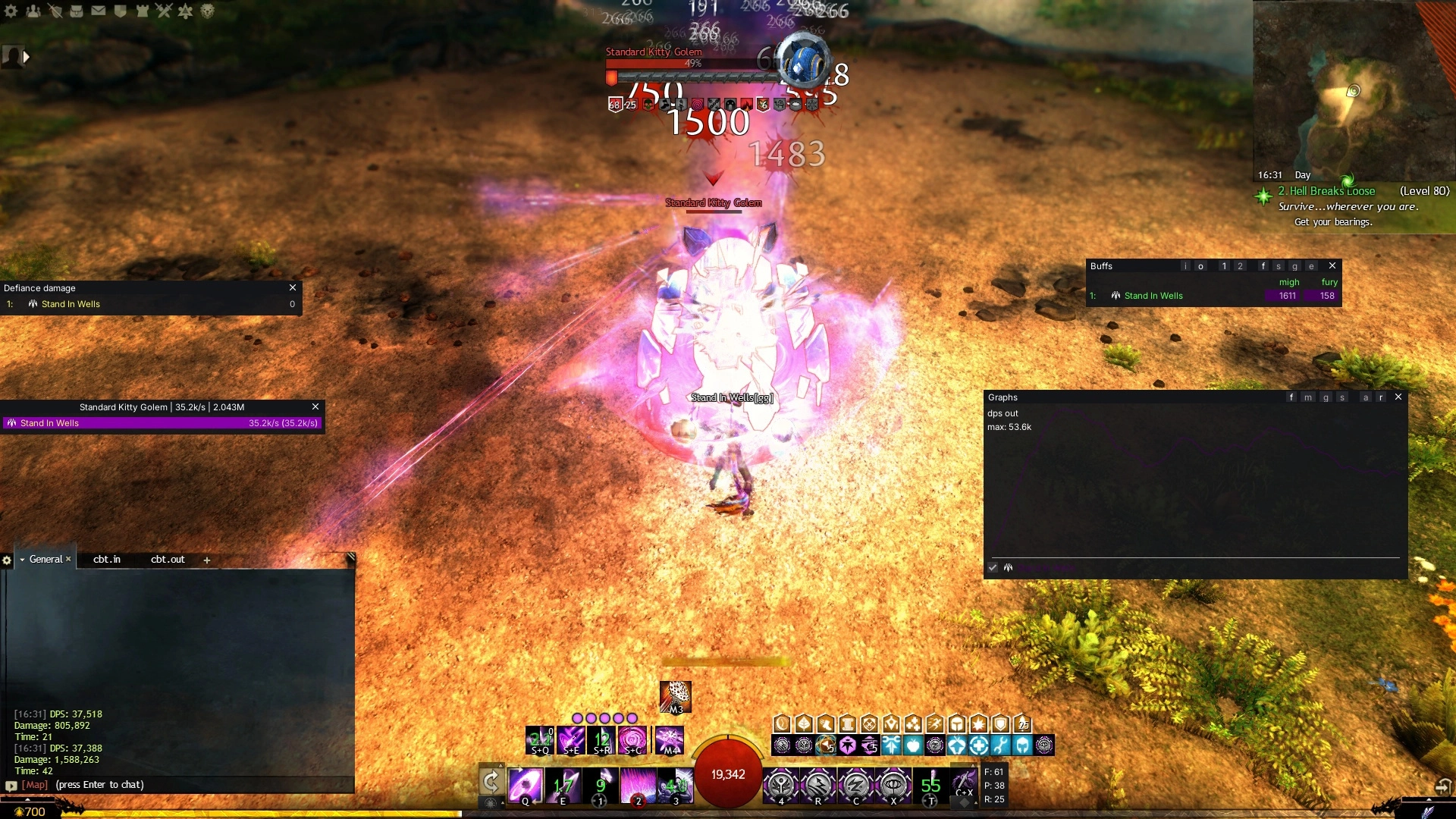
Instanced PvE is where ArcDPS started, and where most groups expect you to run it. This guide shows a practical setup for raids and fractals: which windows to show, which numbers matter for your role, and how to use logs to get better.
A setup per role
Set these windows to visible in PvE only, and use visible only on 3rd line specialization if you play several roles. See Customizing ArcDPS.
| Role | Windows | What to watch |
|---|---|---|
| Damage | Stats (target DPS), your skills | Target DPS compared to your build's benchmark, auto-attack share, cancelled skills |
| Boon support | Stats (target DPS), buffs as volume on subgroup | Quickness or alacrity uptime of your subgroup, might stacks |
| Healer | Buffs as uptime, healing stats extension | Subgroup boons, healing output, cleanses |
| Tank | Stats (damage taken), buffs | Damage taken compared to the group, protection and stability uptime |
Target DPS, not cleave
For boss fights, set your stats window to target damage. Cleave includes adds, and in many fights the best play is to ignore them. When a boss has several important targets, ArcDPS counts them as secondary targets of that encounter. You can add your own under Additional boss IDs, see Logging other encounters.
Checking boons
The buff table answers the most common raid question: is everyone getting quickness, alacrity and might?
- Use uptime to see what each player received. Under 90% quickness or alacrity usually points to a positioning problem, or a support who is out of range.
- Use volume on subgroup to see what a support player generated. This is the number to compare between two supports.
- Use subgroup average rows to compare the two halves of a squad at a glance.
Mechanics and downs
The stats window can sort by downs, deaths and damage taken. Right-click and add a window for Times downed and Damage taken to see who struggles with a mechanic during the fight. For the full picture, with every mechanic per player and the time it happened, use the log report.
Using logs
- Make sure save boss logs is on. It is by default.
- After a kill or wipe, drag the newest log from
arcdps.cbtlogsonto dps.report, or parse it with Elite Insights. - In the report, open the Mechanics tab for failed mechanics, and the Rotation of your player to compare with a benchmark rotation.
Training groups and static groups usually share every attempt in a Discord channel. See Combat Logs, Elite Insights and dps.report for the setup.
Practising on the training golem
The Special Forces Training Area has golems that are on the default logging list. Log your benchmark attempts there: without other players and mechanics in the way, the log shows exactly where your rotation loses damage. Set the golem's boons from the console, so they match the boons you have in your group.
Fractals
Only challenge mode fractal bosses are logged by default. To log other fractal bosses, add their IDs under Additional boss IDs. Fractal groups are parties, not squads, so the stats window shows the five players of your party.
Etiquette
- Most groups use ArcDPS, and many expect you to share logs or numbers when asked. You are never required to run it.
- Use the numbers to find what went wrong, not to call out players in chat. Kicking someone over a single bad pull rarely helps the group.
- Remember that the live meter estimates condition damage of other players. Take it with a grain of salt.