
Customizing Nexus
Updated 21 October, 2026
Nexus is designed to stay out of your way, but almost everything about its interface can be adjusted: the language, how and where the Quick Access bar appears, fonts, colors and spacing, keybinds, and even the icons. This guide walks through the options in the menu and the customization files in your addons\Nexus folder.
Open the Nexus menu with Ctrl+O or the Nexus icon in the Quick Access bar, then choose Options.
General options
Language
Nexus is available in English, German, French, Spanish, Brazilian Portuguese, Czech, Italian, Polish, Russian and Chinese. The language you choose here is also passed on to addons that use the Nexus translation system. Addons with their own translations may have a separate setting.
Interface and behavior
- DPI Scaling scales Nexus with your Windows display scaling. Turn it off if Nexus appears too large on a high-resolution display.
- Close windows with Escape closes Nexus windows, and addon windows that support it, when you press Esc. Each press closes the topmost open window, and the game only receives Esc once no such window is left open.
- Clicking requires modifiers (experimental) only lets the Nexus and addon interface receive mouse clicks while you hold the selected keys (Alt, Ctrl and/or Shift). Without them, clicks go to the game. This is useful if you keep addon windows in places where you also click in the game.
- Lock cursor when moving camera and Reset cursor position after moving camera keep the mouse cursor in place while you hold a mouse button to rotate the camera, which prevents it from drifting over to a second monitor.
- Show Addons Window when volatile addons get disabled opens the addon list after a game update, so you immediately see which addons are waiting for an update.
- Disable festive flair turns off seasonal decorations such as the holiday versions of the Nexus icon.
The Quick Access bar
The Quick Access bar holds the Nexus icon and the shortcut icons of your addons. Clicking an icon usually opens or closes the addon's main window, and right-clicking it can show extra options if the addon provides them. Under Options you can change:
- Vertical Layout stacks the icons vertically instead of horizontally.
- Visibility controls when the bar is shown: always (including loading screens and character select), during gameplay only, only out of combat, only in combat, or never. When it is hidden, the menu is still available with Ctrl+O.
- Location places the bar next to the game's own icons in the top left (Extend), below them (Under), at the bottom of the screen (Bottom), or at a custom position. The Offset fields move it from there.
- Show notification icon when Nexus updates marks the Nexus icon when a new version has been installed, so you can read the changelog.
Fonts, colors and style
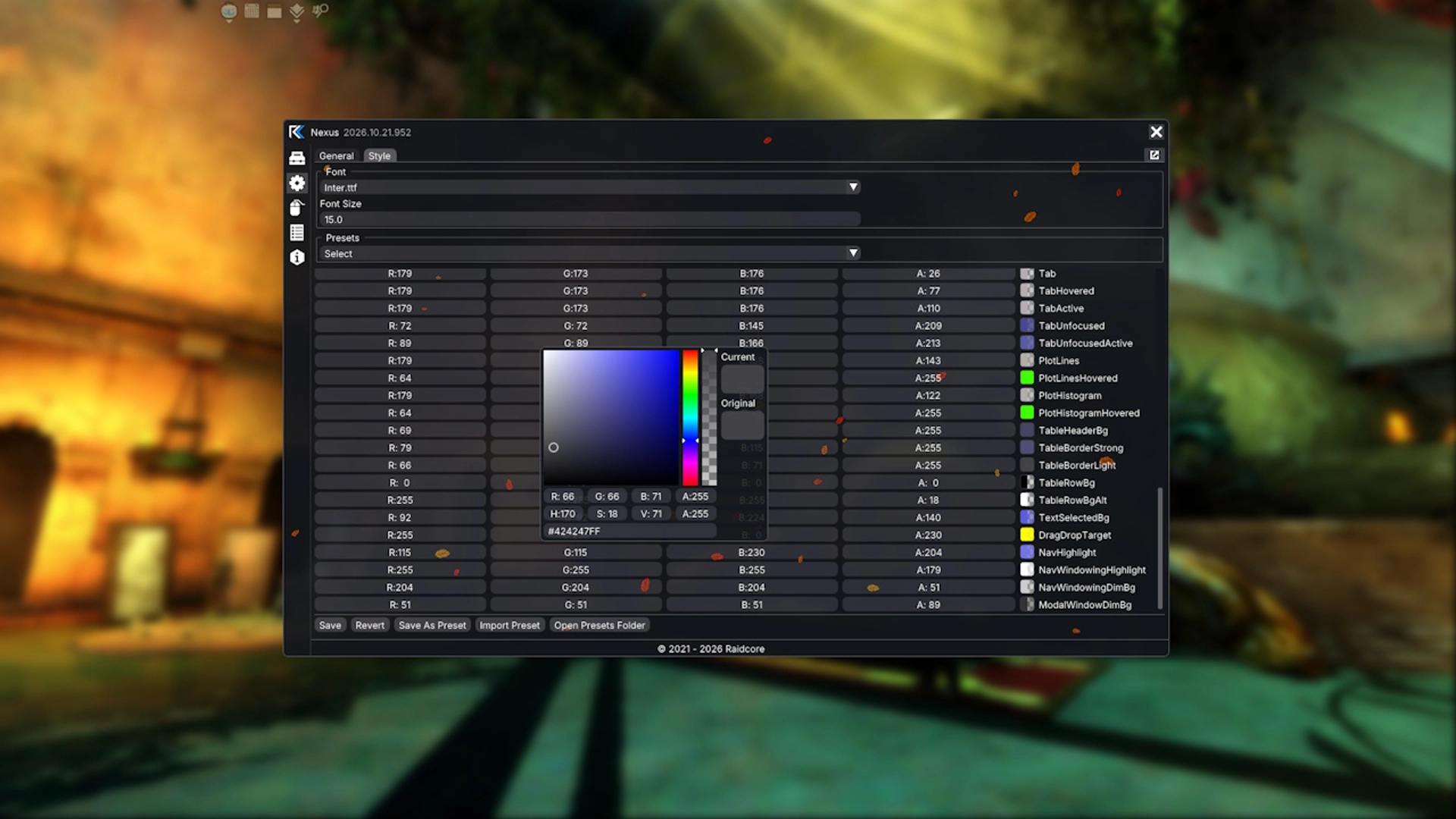
The Style tab of the options controls how Nexus and every addon interface looks. Addons that draw with the interface toolkit provided by Nexus inherit these settings automatically.
Fonts
The Font list shows the default font and every font file in addons\Nexus\Fonts. To use your own font, copy a .ttf or .otf file into that folder, then select it from the list. Font Size changes the size of the interface text.
Style presets
The Presets list contains several ready-made styles:
- Nexus, the default look.
- ArcDPS Default, matching an unmodified ArcDPS.
- ArcDPS Current, which imports your own ArcDPS style from
arcdps.ini, so Nexus and ArcDPS look the same. ArcDPS only saves its style when the game closes, so changes you make in ArcDPS show up in this preset after a restart. - ImGui Classic, ImGui Light and ImGui Dark.
Making your own style
Below the presets, you can adjust spacing, borders, rounding and every individual color. Changes apply immediately. Save your result as a preset to keep it, which stores it in addons\Nexus\Styles. You can also export a style as text and import a style someone else has shared with you, which is an easy way to give a whole guild or static the same look.
Keybinds
The Keybinds page lists the keybinds of Nexus and all loaded addons, grouped by addon. Click a keybind to change it. Nexus warns you if the combination is already in use. Keybinds of addons that are not loaded are not shown, and the Configure button of an addon on the Addons page shows only that addon's keybinds and options.
By default, a key combination that triggers a Nexus keybind is not passed on to the game. Tick Allow keys to pass through to the game next to a keybind if you want both the addon and the game to react to it.
Nexus itself registers these keybinds:
| Keybind | Default | Action |
|---|---|---|
| Nexus Menu | Ctrl+O | Opens or closes the Nexus menu. |
| Toggle UI Visibility | Ctrl+H | Hides or shows all Nexus and addon interfaces. |
| Addons, Options, Log, Debug Window | Not bound | Opens the respective window directly. |
Game keybinds
Some addons press game keys on your behalf, for example to swap a build template or mount up. For this to work, Nexus has to know which keys you use in the game. The Guild Wars 2 tab of the keybinds page lists them. The quickest way to fill it in is to export your keybinds in the game (Options, Control Options, save the keybinds to a file) and then use Import to load that file from Documents\Guild Wars 2\InputBinds. Update it whenever you change your keybinds in the game.
Hiding the interface
Press Ctrl+H to hide every Nexus and addon window at once, and press it again to bring them back. This is useful for screenshots and recordings. See Using Nexus with OBS for more on streaming.
Advanced: textures and translations
Replacing icons and textures
Every image Nexus loads, including the Quick Access icons of Nexus and of most addons, has an identifier. If addons\Nexus\Textures contains a PNG file named after that identifier, Nexus uses it instead of the original. For example, ICON_NEXUS.png replaces the Nexus icon. You can look up the identifiers of all loaded textures in the Debug window, on the Textures tab. Changes take effect the next time you start the game.
Custom translations
Nexus reads its translations from JSON files in addons\Nexus\Locales. Every file declares the language it belongs to and a list of texts:
{
	"Identifier": "de",
	"DisplayName": "Deutsch",
	"Texts": {
		"KB_MENU": "Nexus-Menü"
	}
}
Files with the same Identifier are merged, so you can add a small file of your own to override or complete individual texts without editing the files Nexus ships. The files are read in alphabetical order and later files win, so give yours a name that sorts after the shipped one, for example de_Overrides.json next to de_Main.json. Do not edit the shipped files themselves, since Nexus writes them again on every start. To add a completely new language, use a new identifier and set a DisplayName, and it appears in the language list. If you would like to improve an official translation for everyone, get in touch on the Raidcore Discord.