
Rendering and Dear ImGui Integration
Updated 21 October, 2026
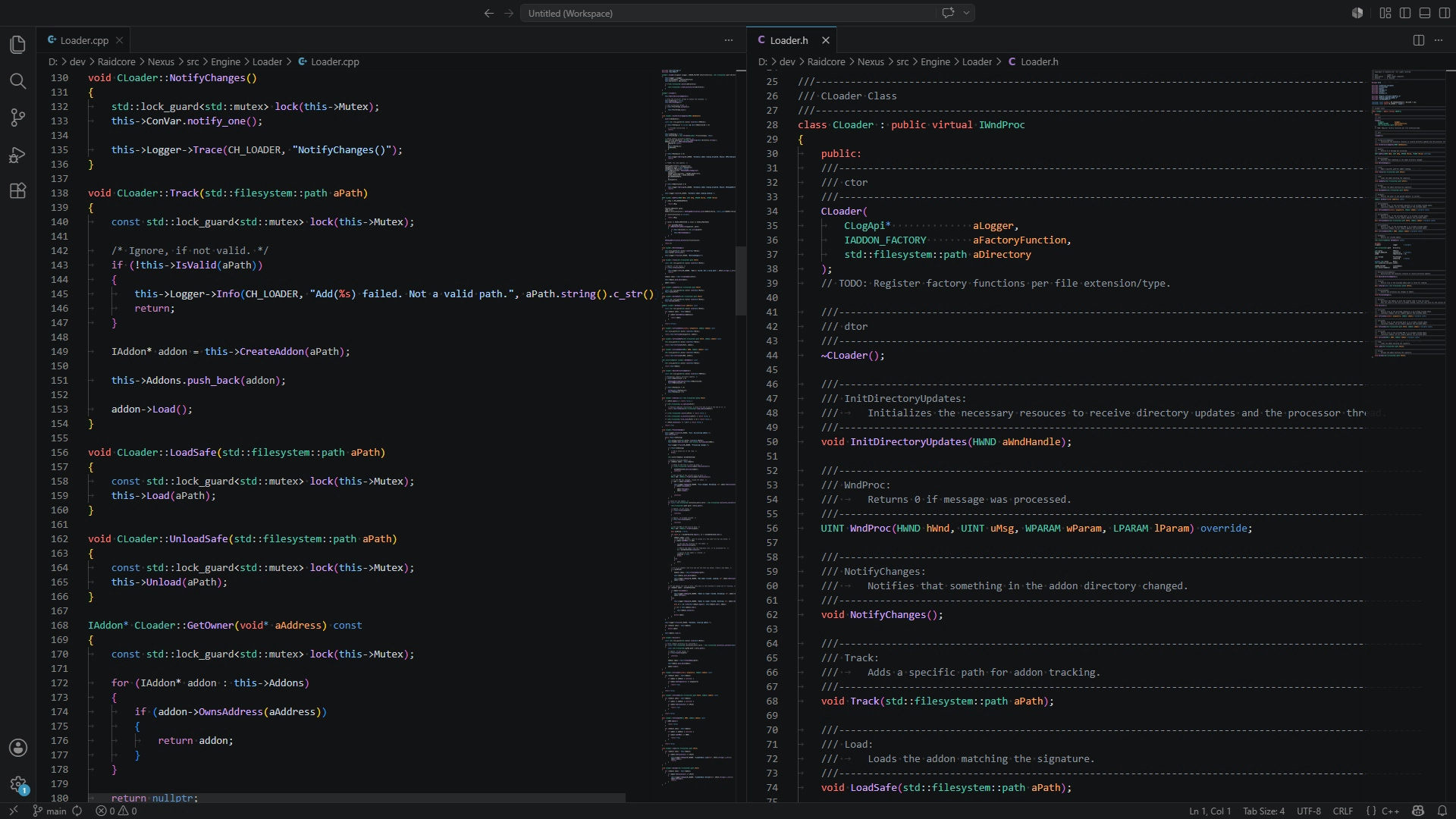
Nexus draws its interface with Dear ImGui and shares its ImGui context with every addon. Your windows therefore look and behave like Nexus's own: they follow the user's style and font, receive input correctly, close with Escape and hide with the rest of the interface. This guide covers the render stages, setting up ImGui, settings pages, Quick Access icons, alerts, and when to hide your interface.
Use exactly Dear ImGui 1.80
Nexus creates and owns the ImGui context, and your addon draws into it with its own copy of the ImGui code. Both have to agree on the exact memory layout of ImGui's internal structures, which changes between ImGui versions. Nexus uses Dear ImGui 1.80, so your addon must be compiled with exactly that version, from the v1.80 release.
- Use the regular branch, not the docking branch.
- Do not change
imconfig.hin ways that alter structure layouts, such asImDrawIdxorIMGUI_USE_WCHAR32. - Do not include ImGui's Win32 or DirectX 11 backends. Nexus handles input and rendering.
A mismatched version usually compiles fine and then crashes or behaves strangely at runtime, so it is worth double-checking.
Nexus is committed to keeping addons built against ImGui 1.80 working in future versions, so you will not have to update your ImGui code when Nexus changes internally.
Setting up ImGui
In your load function, switch your copy of ImGui to the context and memory allocator of Nexus before doing anything else with ImGui:
void AddonLoad(AddonAPI_t* aApi)
{
	APIDefs = aApi;

	ImGui::SetCurrentContext((ImGuiContext*)APIDefs->ImguiContext);
	ImGui::SetAllocatorFunctions(
		(void* (*)(size_t, void*))APIDefs->ImguiMalloc,
		(void (*)(void*, void*))APIDefs->ImguiFree
	);

	APIDefs->GUI_Register(RT_Render, AddonRender);
}
The allocator matters: ImGui allocates memory in one module and may free it in another, which crashes unless all modules use the same allocator. Never call ImGui::CreateContext, ImGui::NewFrame or ImGui::Render yourself.
Render stages
Register callbacks with GUI_Register(type, callback) and remove them with GUI_Deregister(callback). A callback takes no arguments and returns nothing. Nexus calls them once per frame, on the game's render thread, right before the game presents the frame:
| Type | When it runs | Use it for |
|---|---|---|
RT_PreRender |
Before the ImGui frame starts. | Per-frame work that must happen before drawing, or your own DirectX 11 rendering. No ImGui calls. |
RT_Render |
Inside the ImGui frame. | Your windows and overlays. Not called while the user has hidden the interface with Ctrl+H. |
RT_PostRender |
After ImGui has been drawn. | DirectX 11 rendering on top of the interface. No ImGui calls. |
RT_OptionsRender |
Inside your addon's settings area on the Addons page, only while it is open. | Your settings, see Settings page. |
RT_PreRender and RT_PostRender also run while the interface is hidden. Every callback runs on every frame, so keep them cheap: avoid allocations, file access and locks held by slow threads.
Drawing windows
static bool s_IsVisible = false;

void AddonRender()
{
	if (!s_IsVisible) { return; }

	if (ImGui::Begin("My Addon", &s_IsVisible, ImGuiWindowFlags_AlwaysAutoResize))
	{
		ImGui::Text("Hello, Tyria!");
	}
	ImGui::End();
}- Window names identify windows and store their position and size in ImGui's state, so keep them unique, for example by including your addon name.
- Always call
ImGui::End(), even ifBeginreturned false. - Balance every
Pushwith aPopwithin the same callback. Unbalanced stacks break other addons and Nexus itself. - Your windows use the style and font the user picked. If you need a specific look, push style changes around your own widgets rather than changing
ImGui::GetStyle(), which would affect everyone.
Closing with Escape
Users expect windows to close when they press Esc. Register each window with the name you pass to ImGui::Begin and a pointer to its visibility flag. Nexus then sets the flag to false when the user presses Escape while the window is open, if the user has this option enabled:
APIDefs->GUI_RegisterCloseOnEscape("My Addon", &s_IsVisible);

/* In Unload: */
APIDefs->GUI_DeregisterCloseOnEscape("My Addon");
The flag must stay valid until you deregister it, so use a global or static variable.
Settings page
Instead of building your own settings window, register an RT_OptionsRender callback. Nexus calls it when the user opens your addon's settings with Configure on the Addons page, inside a window Nexus already created. Draw widgets only, without Begin and End:
void AddonOptions()
{
	if (ImGui::Checkbox("Show only in combat", &Settings::OnlyInCombat))
	{
		Settings::Save();
	}
}
The same page also lists your addon's keybinds, so you do not need to show those yourself.
Quick Access shortcuts
A Quick Access shortcut is an icon in the bar at the top left of the screen. Clicking it invokes one of your keybinds, which is typically the keybind that toggles your main window. Shortcuts use textures by identifier, so load them first, see Working with Textures:
APIDefs->Textures_LoadFromResource("ICON_MYADDON", IDB_ICON, s_Module, nullptr);
APIDefs->Textures_LoadFromResource("ICON_MYADDON_HOVER", IDB_ICON_HOVER, s_Module, nullptr);

APIDefs->InputBinds_RegisterWithString("KB_MYADDON_TOGGLE", ProcessKeybind, "(null)");

APIDefs->QuickAccess_Add(
	"SC_MYADDON",          /* Shortcut identifier. */
	"ICON_MYADDON",        /* Texture. */
	"ICON_MYADDON_HOVER",  /* Texture while hovered. */
	"KB_MYADDON_TOGGLE",   /* Keybind invoked on click. */
	"My Addon"             /* Tooltip. */
);
If the textures are not available within the first few frames after adding the shortcut, Nexus gives up and shows a generic icon instead. Load shortcut icons from an embedded resource or a file before you add the shortcut, not from a URL. Icons should be square, and the game's own icons are a good reference for size and style. The tooltip also shows the keybind, if one is set. Passing "(null)" as default keybind registers it without a key combination, which is a good default for toggles that are also available as a shortcut.
QuickAccess_Notify("SC_MYADDON")shows a notification badge on the icon, for example to point out news or updates.QuickAccess_Remove("SC_MYADDON")removes the shortcut. Call it in your unload function.
Context menus
Right-clicking a shortcut opens its context menu. You can add your own section with a render callback, either to your own shortcut or, by passing nullptr as target, to the Nexus icon. Draw widgets only. If the target shortcut does not exist yet, the item is attached as soon as it is added.
void ContextMenu()
{
	ImGui::Checkbox("Lock windows", &Settings::LockWindows);
}

APIDefs->QuickAccess_AddContextMenu("CTX_MYADDON", "SC_MYADDON", ContextMenu);

/* In Unload: */
APIDefs->QuickAccess_RemoveContextMenu("CTX_MYADDON");
Alerts
GUI_SendAlert("Settings saved.") shows a short message centered near the top of the screen that fades out after a few seconds, the same way Nexus shows its own notifications. Use it sparingly, for things the user needs to notice.
When to show your interface
Overlays that stay on screen during loading screens, cutscenes or with the map open look broken. Nexus shares state you can use to decide when to draw, through shared resources:
static NexusLinkData_t* s_NexusLink = nullptr;
static Mumble::Data*    s_MumbleLink = nullptr;

/* In Load: */
s_NexusLink  = (NexusLinkData_t*)APIDefs->DataLink_Get(DL_NEXUS_LINK);
s_MumbleLink = (Mumble::Data*)APIDefs->DataLink_Get(DL_MUMBLE_LINK);

/* In your render callback: */
if (!s_NexusLink->IsGameplay) { return; }       /* Loading screen or character select. */
if (s_MumbleLink->Context.IsMapOpen) { return; }
NexusLinkData_t also contains the screen size (Width, Height), the game's interface Scaling, whether the player or camera is moving, and the game's fonts. The Mumble::Data structure comes from the RCGG-lib-mumble-api header and contains everything the game publishes through MumbleLink: positions, camera, map, combat state and more.
Scale fixed sizes, such as icon or window sizes, with s_NexusLink->Scaling, so your interface matches the game's interface size setting.
Rendering with DirectX 11
APIDefs->SwapChain is the game's IDXGISwapChain*. From it, you can get the device and render your own content in RT_PreRender or RT_PostRender. Release every interface you obtain, restore any pipeline state you change, and expect the swap chain to change when the user switches display modes: EV_WINDOW_RESIZED is raised when the game resizes its buffers. For images in ImGui, use the texture API instead, which handles all of this for you.