
Using Nexus with OBS
Updated 21 October, 2026
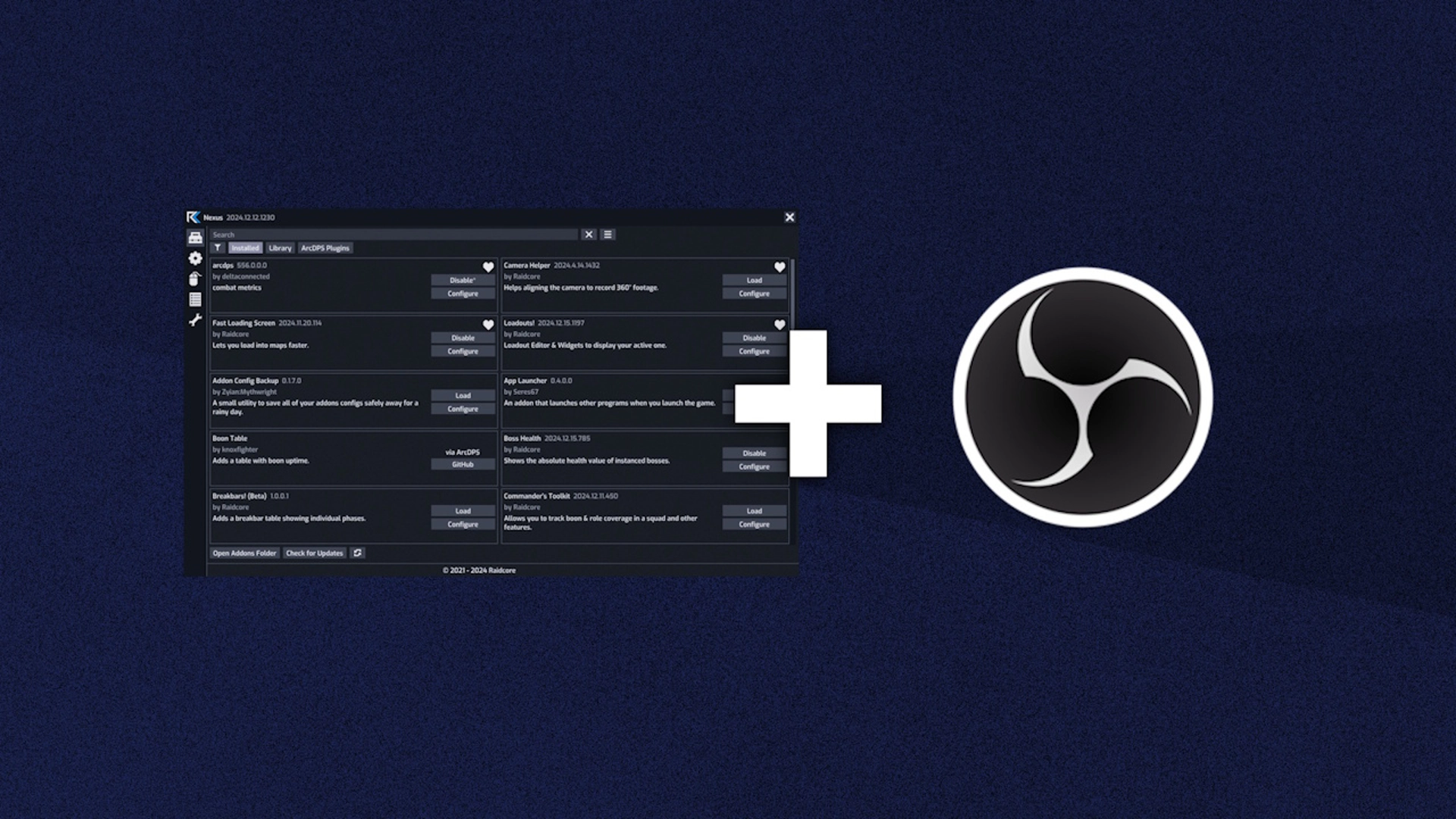
Nexus and its addons draw directly into the game's own frame. That makes them efficient, but it also means that anything capturing the game, such as OBS Studio, Streamlabs or Discord screen sharing, sees exactly what you see. This guide explains how to set up your capture and how to keep addon windows off stream when you want to.
What your viewers see
Because Nexus has no window of its own, there is no separate overlay to capture or to exclude. Every capture method that shows the game also shows Nexus, the Quick Access bar and all addon windows, exactly as they appear on your screen. This is different from external overlays such as Blish HUD, which draw into a separate window that OBS only captures if you add it as its own source.
In practice, this means:
- You do not need any extra sources or plugins to show addons on stream.
- To hide addons from viewers, you also hide them from yourself while they are hidden.
- Information you see in addon windows, such as your account name, squad members or chat-related tools, is visible to your viewers.
Setting up OBS
Both common capture methods work with Nexus:
- Game Capture (recommended): set the mode to Capture specific window and select
[Gw2-64.exe]: Guild Wars 2. It has the lowest overhead, works in every display mode, and includes Nexus and all addons. If it doesn't show, you will have to enable "Capture third-party overlays" in the properties of your game capture. - Window Capture or Display Capture: these also include Nexus and addons, since they capture the finished image. Window Capture requires windowed or windowed fullscreen mode.
If Game Capture only shows a black image, run OBS with the same privileges as the game. If the game runs as administrator, OBS has to as well.
Hiding Nexus and addons
Everything at once
Press Ctrl+H to hide every Nexus and addon window, and press it again to show them. You can change this keybind on the Keybinds page under Toggle UI Visibility. This is the quickest way to hide sensitive information or get a clean shot, for example before entering a character select screen on stream. Addons stay loaded while hidden, and most of them keep tracking in the background. Anything an addon only updates while its window is drawn pauses until you show the interface again.
Some streamers bind this toggle to a key they can reach easily, or to a button on a stream deck that sends the key combination to the game.
The Quick Access bar
If you only want to hide the Quick Access icons, set their Visibility in the options to Never Show and open the menu with Ctrl+O when you need it. You can also show the bar only out of combat. See Customizing Nexus.
Individual addons
Close the windows you do not want to show, or disable the addon on the Addons page. Most addons can be disabled and re-enabled while the game is running without a restart. Many addons also offer their own visibility options, for example to hide outside of combat or in specific game modes.
Privacy checklist
Before going live, check your addon windows for information you may not want to share:
- Account names, for example in squad, LFG or killproof tools.
- Private chat, whispers or guild information mirrored into addon windows.
- Paths or names in the Nexus log window, which can include your Windows user name.
- API keys entered into addon settings. Close settings windows before you start streaming, and never type a key while you are live.
Performance while streaming
Encoding a stream already costs CPU or GPU time. Nexus itself adds very little, but heavy addons draw on the same frame budget as the game. If your stream stutters in large fights, check which addons are active and disable those you do not need on stream. Hiding windows with Ctrl+H also skips drawing them, which saves a little rendering time.