

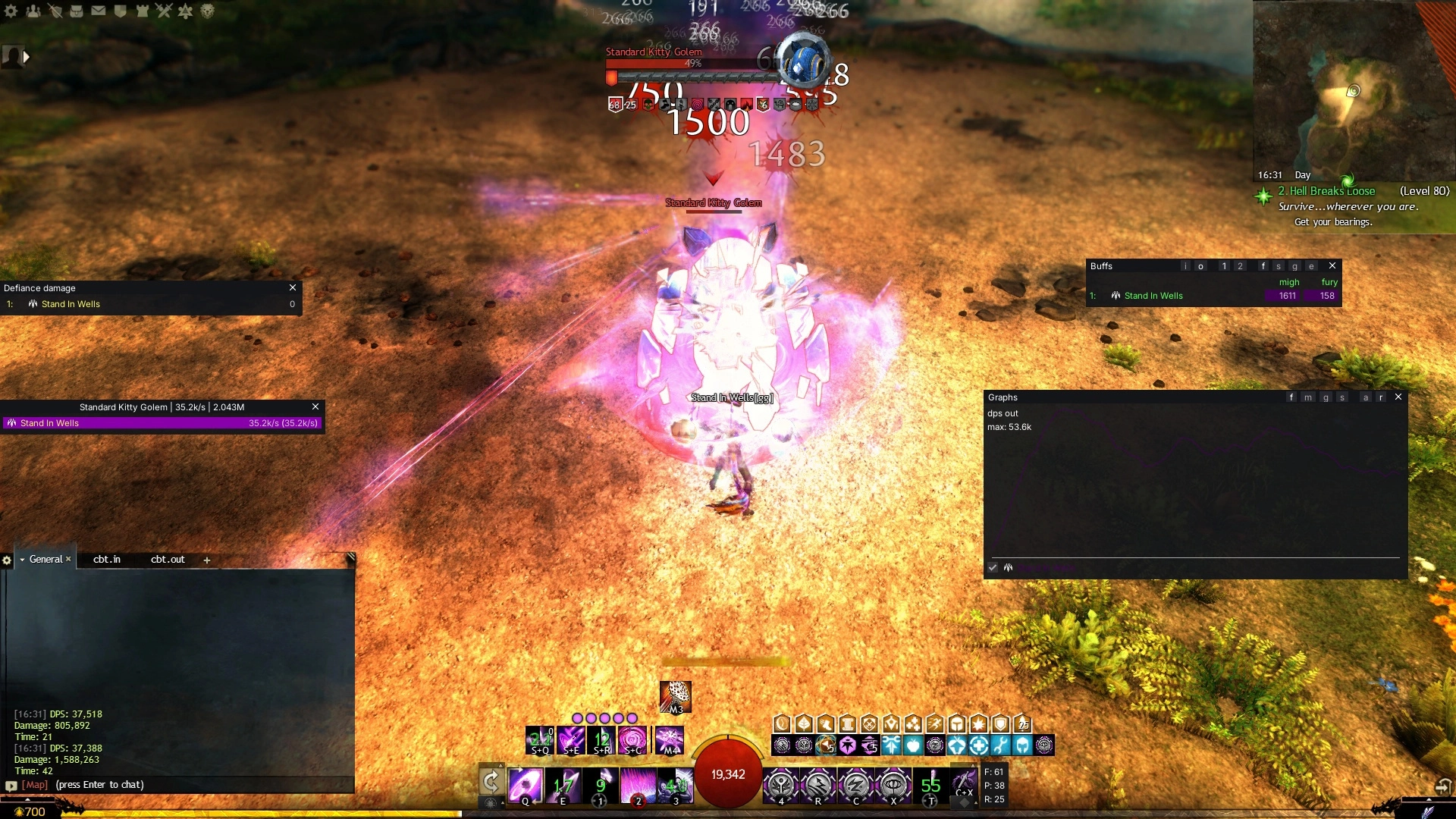
ArcDPS is built around a handful of windows that you open with hotkeys and configure with a right-click. This guide explains the hotkeys, what each window does and how to read the numbers, so you can set up a useful layout in a few minutes.
Hotkeys
All ArcDPS hotkeys use the same two modifier keys, Alt+Shift by default, followed by one more key.
| Hotkey | Action |
|---|---|
| Alt+Shift+T | Open or close the options |
| Alt+Shift+H | Hide or show all ArcDPS windows |
| Alt+Shift+C | Open or close the stats window (the DPS meter) |
| Alt+Shift+B | Open or close the buffs window (the boon table) |
| Alt+Shift+S | Open or close your skills window |
You can change the modifiers and the main hotkeys in the options. Hotkeys for additional stats, buffs and graphs windows are set in each window's own right-click menu. If a hotkey does nothing while the windows still draw, another program with a global keyboard hook (a voice chat or overlay tool, for example) is probably using that combination.
Working with windows
- Right-click any ArcDPS window to open its context menu. Almost every setting lives there, not in the options window.
- Moving windows requires the modifier keys by default, so you do not drag a meter by accident in a fight. Hold Alt+Shift and drag. You can turn this off with moving windows requires modifiers.
- Visibility is set separately for PvE, WvW and PvP. A window you place in a raid does not automatically appear in WvW. Right-click a window to set where it shows, or limit it to one elite specialization or character.
- Several windows of one type: you can open more than one stats or buffs window, each with its own settings. Their ID is shown in the title bar.
The windows
Stats
The DPS meter. By default it lists your party or squad with outgoing damage per second. Right-click it to choose the stat it sorts by: damage, damage taken, healing, barrier, cleanses, strips, crowd control, downs and kills contribution, distance to commander and many more. Each stat has a tooltip in the menu that explains exactly what it counts.
Buffs
The buff table. It shows boon uptime or generation per player, for example how much might, fury and quickness your group had. Right-click to switch between uptime (what each player received) and generation (what each player gave to others), and to edit the buff list.
Skills and details
Breaks your own damage down per skill, with hits, crits, flanking, glances and misses. The details window does the same for any player or target you pick, including incoming damage. This is where you check whether a rotation actually landed.
Graphs
Plots damage or buffs over time. Click and drag on a graph to select a time range; every window then shows stats for that range only. Useful to compare a burst phase with the rest of a fight.
History
Keeps your last fights, so you can look at stats after the boss is dead or after you changed maps. Set how many with squad fights to keep.
Metrics and log
The metrics window shows frame rate, ping, map tick rate and the current map ID. The log window shows ArcDPS messages, including why a combat log was or was not saved. Both are mainly for troubleshooting.
Reading the numbers
Target and cleave
- Target damage only counts damage to the current boss or encounter target. This is the number to compare in raids, strikes and fractals.
- Cleave counts damage to everything, including adds and destroyable objects. It is higher, but not a fair comparison between players.
Current fight and normalized
- Current fight measures from the first player entering combat to the last player leaving it. In PvP it uses the length of the match.
- Normalized stats are accumulated per player over a longer period and are reset as configured in the options, for example on map change.
Area stats and what they miss
ArcDPS can only show what the game server tells the client. For other players, a few things are estimated or missing:
- Percent-based damage, siphon damage and combo finisher damage are not included for others.
- Condition damage of other players is simulated from their gear, traits and buffs. It is close, but not exact.
- Healing of other players is not available, unless they use the healing stats extension. See Extensions.
Your own numbers are always exact. If you want the full picture of a fight, record a log and open it in Elite Insights, see Combat Logs.
A simple starter layout
- Open a stats window with Alt+Shift+C. Players commonly place them on the side of their screen.
- Right-click it and set it to target damage per second, with profession colours.
- Open the buffs window with Alt+Shift+B and place it below the stats window.
- Right-click both and enable hide windows out of combat if you only want to see them while fighting.
- Continue with Customizing ArcDPS to fine-tune them.
ArcDPS numbers are a tool for improving yourself and your group. Do not use them to harass other players. The ArcDPS author puts it more bluntly on the download page, and ArenaNet's third-party policy agrees.