
Testing and Debugging Nexus Addons
Updated 21 October, 2026
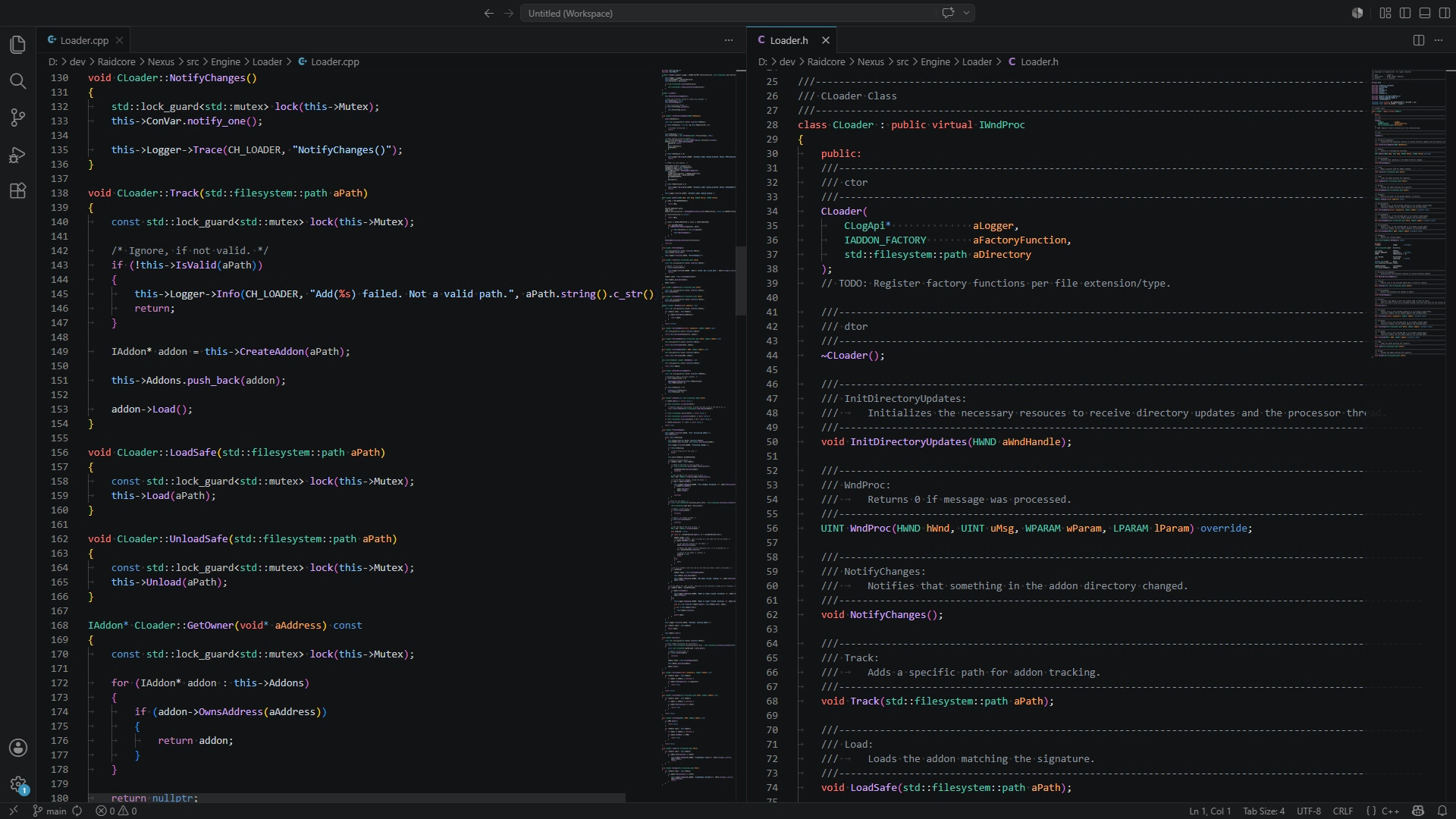
Addons run inside a game you cannot pause or restart instantly, which makes a good development setup especially valuable. This guide covers the fast reload loop, logging, the Nexus debug tools, attaching a debugger, tracking down crashes, and a checklist to run through before every release.
The reload loop
Nexus watches the addons folder. When you place a new build next to your loaded addon as MyAddon.dll.update, Nexus unloads your addon, swaps the files and loads the new build, without restarting the game. Set this up as a post-build step, as described in Getting Started, and every build shows up in the game a moment later.
This only works if your addon can be unloaded. If you use AF_DisableHotloading or have no Unload function, consider leaving hot-loading enabled in development builds.
Each reload also tests your unload function. If something was left registered, Nexus logs a warning like Removed 2 unreleased references from "MyAddon.dll" with a breakdown by category. Fix these as you go: they are harmless in development, but they hint at resources you forgot to clean up, and the same mistake with a thread or hook will crash the game.
Logging
Write to the Nexus log with a level, a channel and a message:
APIDefs->Log(LOGL_INFO, "MyAddon", "Settings loaded.");
APIDefs->Log(LOGL_WARNING, "MyAddon", "Could not reach the server, retrying.");
The channel groups your messages in the Log window, so use your addon's name. Levels are LOGL_CRITICAL, LOGL_WARNING, LOGL_INFO, LOGL_DEBUG and LOGL_TRACE. The log takes a finished string, so format messages yourself, for example with snprintf or std::format.
Messages appear in three places:
- the Log page in the Nexus menu, which can be filtered by level and channel,
addons\Nexus\Nexus.log, which is rewritten on every game start,- a separate console window, if you start the game with
-ggconsole. This is handy on a second monitor during development.
Users send you their log when they report a problem, so log what helps you understand it: your version, unusual conditions and errors with their cause. Do not log every frame, and never log personal data, API keys or tokens.
The Debug window
The Debug page in the Nexus menu shows Nexus's internal state. You can also bind a key to it on the Keybinds page. Its tabs show:
| Tab | Shows |
|---|---|
| Events | Every event with its subscribers and how often it was raised. Check here whether your subscriptions and your events arrive. |
| InputBinds | Every keybind with its key combination and handler. |
| DataLink | Every shared resource with its size and the name of its shared memory, plus a memory viewer for its contents. |
| Textures | Every loaded texture with its identifier and size, plus textures still queued. |
| Quick Access | Every shortcut and context menu item. |
| Loader | Every tracked addon with its state, and pending loader actions. |
| Fonts | Every font, its subscribers and the font atlas. |
The Debug page also has two useful switches: the Mumble overlay shows the live MumbleLink data, which helps when working with positions, maps or combat state, and the ImGui Debugger opens ImGui's metrics window, where you can inspect windows, draw calls and ID conflicts.
Attaching a debugger
You can debug your addon like any other DLL by attaching to the game process:
- Build in a configuration that produces a PDB file, and keep the PDB next to the DLL you build.
- Start the game and load your addon.
- In Visual Studio, choose Debug, Attach to Process, and select
Gw2-64.exe. - Set breakpoints. They work in all your callbacks.
Alternatively, set your project's debugging command to Gw2-64.exe in your game folder, with the game folder as working directory, so pressing F5 starts the game with the debugger attached. Add -ggaddons with your addon's signature in decimal to the arguments if you want to test it in isolation.
Keep in mind that a breakpoint in a render callback freezes the game's rendering, and a breakpoint that is hit while the game holds the mouse can make it hard to switch windows. Breakpoints in keybind and event handlers are more comfortable.
While a debugger is attached, Visual Studio keeps the PDB open, so the next build may fail to write it. If you combine the debugger with the reload loop, give each build's PDB a unique name, for example with the linker's Generate Program Database File option set to a name including a timestamp.
Investigating crashes
When the game crashes, start with the end of Nexus.log. It shows which addon was being loaded or unloaded, and your own messages show what your addon was doing.
The game's own crash log, ArenaNet.log in %AppData%\Guild Wars 2, contains the address where the crash happened and the list of loaded modules. To find out whether the crash happened in your code:
- Look up your addon's address range. Nexus logs it when your addon loads: Address Space: 00007FF8A1230000 - 00007FF8A1290000.
- If the crash address lies in that range, subtract the start address to get the offset inside your DLL.
- Open the matching PDB in a debugger or with a symbol tool to translate the offset into a function and line.
This only works with the exact PDB of the build the user ran, so archive the PDB of every release you publish.
The most common causes of addon crashes are:
- A thread still running after
Unloadreturned. - A function pointer shared with another addon that was called after the owner unloaded.
- Using an
ImFont*after an atlas rebuild, instead of the pointer from your font receiver. - ImGui built from a version other than 1.80, or calls to ImGui outside of render callbacks.
- Unbalanced ImGui calls, such as a missing
EndorPopStyleVar. - Data races between keybind or event handlers and the render thread.
Release checklist
- Load and unload the addon several times in one session. No warnings about unreleased references appear.
- Start the game with the addon enabled, and also enable it after the game is already running. Both work, including your keybinds and shortcuts.
- Delete your addon's settings and start fresh. First-time use works and creates its folder.
- Try the game's interface sizes, a different Nexus font size, and windowed and fullscreen modes.
- Switch the Nexus language, if you use translations.
- If you depend on ArcDPS or another addon, test without it. Your addon degrades gracefully and tells the user what is missing.
- Test the release build, not just the debug build, ideally on a machine without your development tools.
- Bump the version in
GetAddonDefand make sure it matches your release tag, see Packaging and Distributing Nexus Addons.